

Publishing Websites
Course websites are hosted on EduArc’s servers and accessible via a custom URL.How to Publish
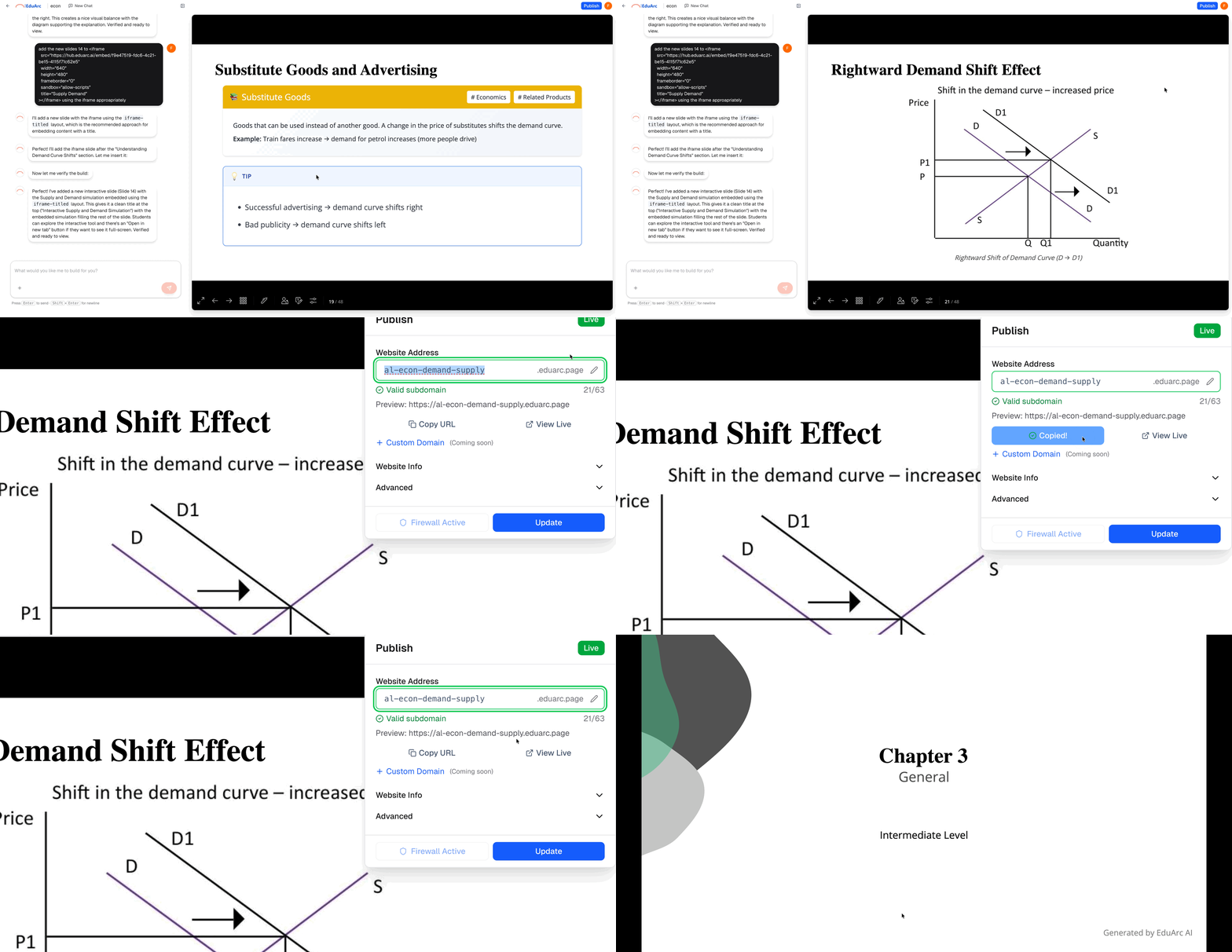
- Review your content in the preview panel
- Click Publish in the top right corner
- Your site goes live at
yourproject.eduarc.page
Sharing Your Website
Direct Link
Share the URL directly with students. No login required to view.
Embed
Embed in your LMS (Canvas, Moodle, etc.) using the iframe code.
Updating Published Sites
Any changes you make are saved automatically. To update the live site:- Make your edits in the chat
- Click Publish again
- Changes go live immediately
Students viewing your site will see updates on their next page load.
Downloading PDFs
Study guides and assignments can be downloaded as PDF files.How to Download
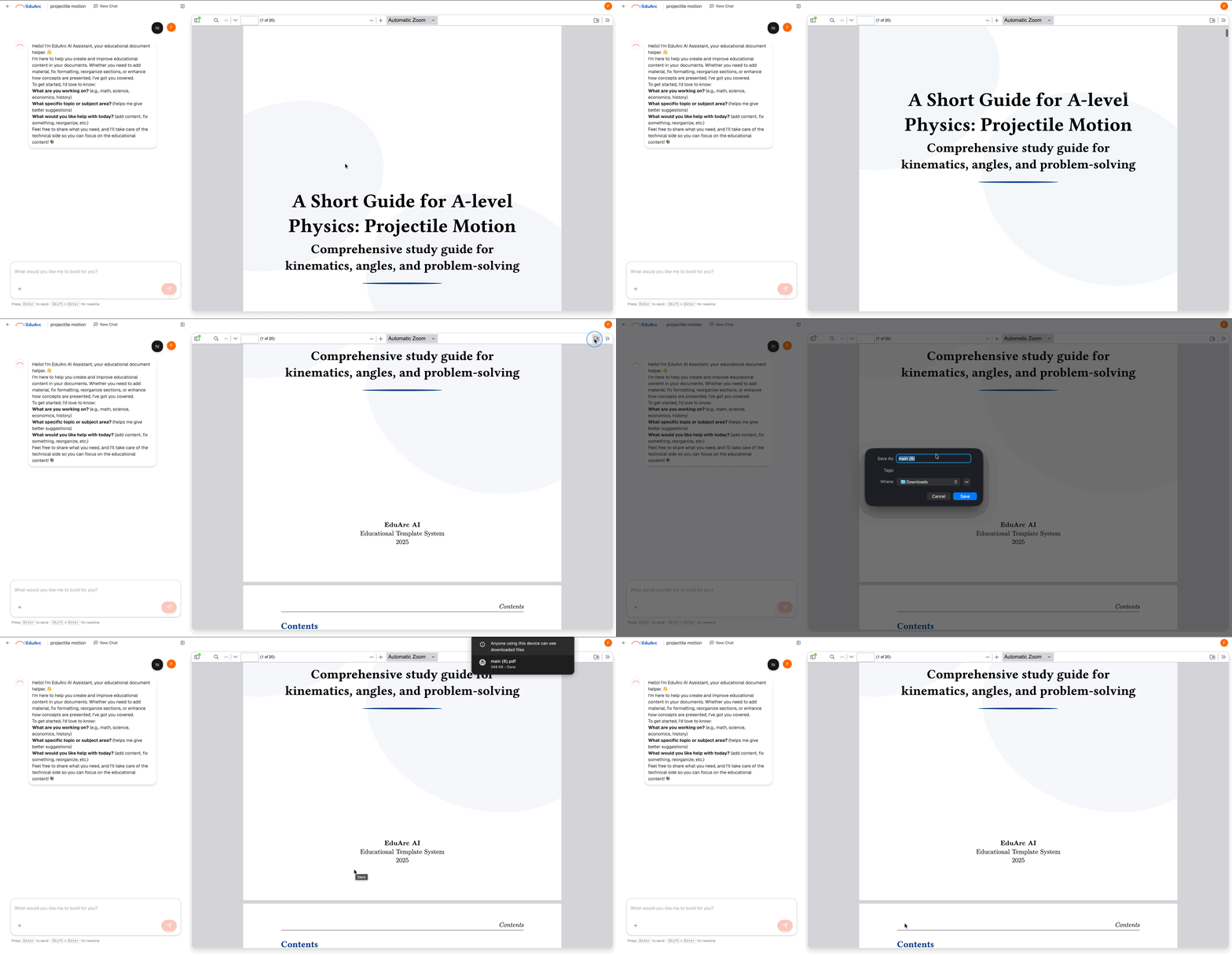
- Review your document in the preview panel
- Click Download PDF in the top right
- The PDF is generated and downloaded to your computer
PDF Features
Your downloaded PDFs include:- Professional formatting with consistent styling
- Mathematical equations rendered beautifully
- Diagrams and figures at full quality
- Print-ready layout optimized for A4/Letter
Sharing PDFs
Upload to LMS
Upload to Canvas, Moodle, Google Classroom, or your school’s platform.
Attach to emails for direct distribution.
Print copies for in-class distribution.
Cloud Storage
Save to Google Drive, OneDrive, or Dropbox for easy sharing.
Publishing Slides
Slide presentations are published online just like websites, giving you a shareable link.How to Publish
- Review your slides in the preview panel
- Click Publish in the top right corner
- Your presentation goes live at
yourproject.eduarc.page
Sharing Your Slides
Direct Link
Share the URL directly with students. No login required to view.
Embed
Embed in your LMS (Canvas, Moodle, etc.) using the iframe code.
Presenting
When viewing your published slides:- Use arrow keys or click to navigate between slides
- Press F for fullscreen mode
- Share your screen in video calls (Zoom, Teams, Meet)
Managing Published Content
From Your Dashboard
Your dashboard shows all your projects with their status:- Draft: Not yet published, only visible to you
- Published: Live and accessible via URL
- Updated: Published but has unpublished changes
Unpublishing Content
To take content offline:- Open the project
- Click the menu icon (three dots)
- Select Unpublish
Privacy and Access
Who Can See Published Content?
Published Websites
Published Websites
Anyone with the link can view. No login required. URLs are not discoverable by search engines by default.
Downloaded PDFs
Downloaded PDFs
Only people you share the file with can access it.
Shared Slides
Shared Slides
Protecting Content
All EduArc URLs use random identifiers. Your content won’t appear in search engines and can’t be guessed.
Troubleshooting
PDF not downloading
PDF not downloading
Large documents may take a minute to generate. If the download doesn’t start after 2 minutes, try refreshing and clicking Download again.
Website changes not appearing
Website changes not appearing
Make sure you clicked Publish after making changes. Also try clearing your browser cache or opening in an incognito window.
Slides not presenting
Slides not presenting
Ensure your browser allows popups from eduarc.ai, as the presentation opens in a new window.
Next Steps
Templates Overview
Learn about each template type in detail
Get Help
Find answers to common questions