

Supported File Types
Lecture notes, textbooks, papers
Word
DOCX documents from Microsoft Word
PowerPoint
PPTX presentations
Images are preserved! All diagrams, figures, and images in your documents are automatically extracted and understood by the AI.
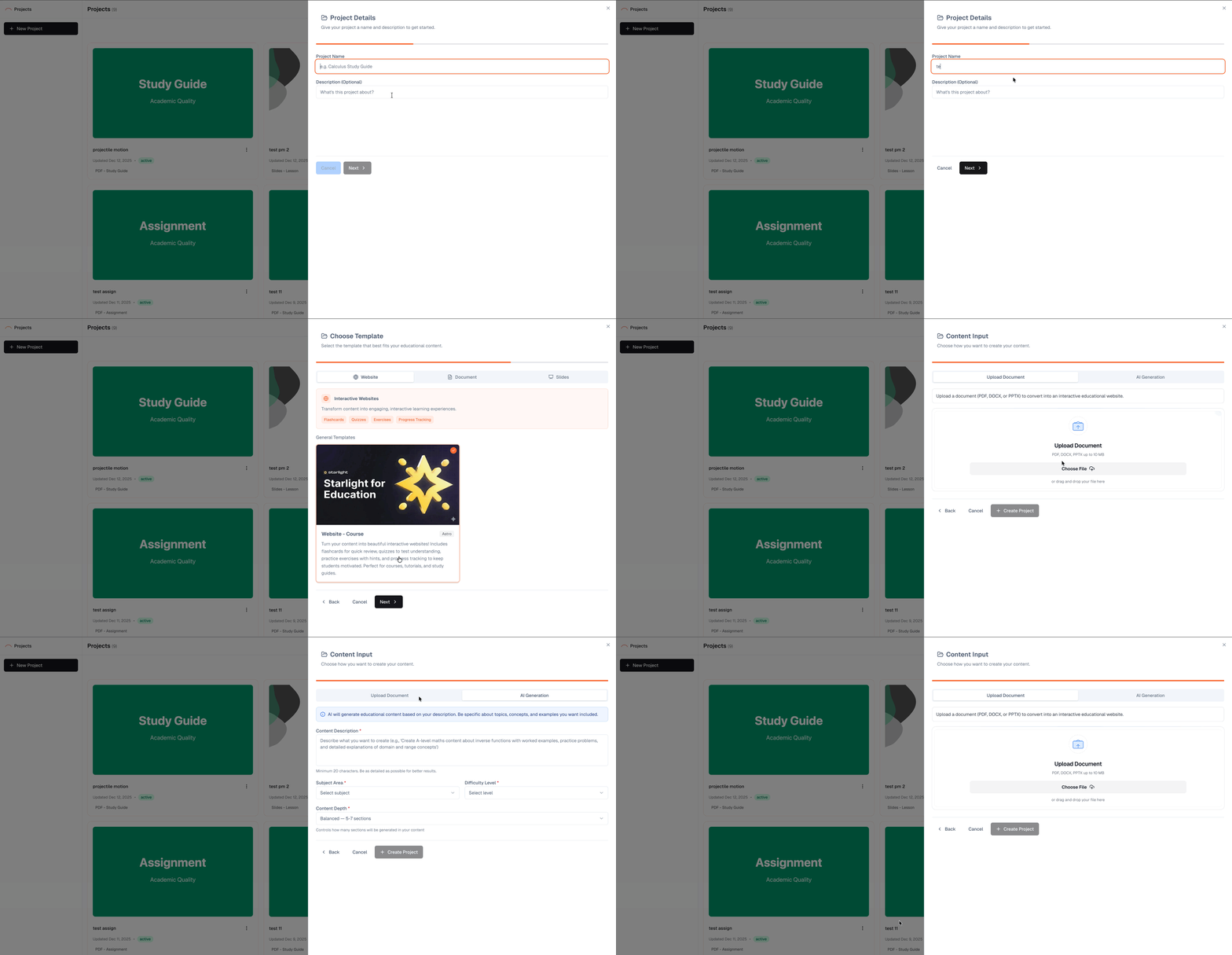
How to Upload
- Click Upload in your project
- Drag and drop files or click to browse
- Wait for processing to complete
Tips for Best Results
PDF Documents
Use text-based PDFs when possible
Use text-based PDFs when possible
PDFs with selectable text process faster and more accurately than scanned documents. If you created the PDF from Word or LaTeX, it’s already text-based.
Scanned documents work too
Scanned documents work too
EduArc uses advanced OCR (optical character recognition) to read scanned pages. For best results, ensure scans are clear and well-lit.
Mathematical content
Mathematical content
LaTeX PDFs and typed equations are recognized automatically. Handwritten math works but may need occasional corrections.
Word Documents (DOCX)
Formatting is preserved
Formatting is preserved
Headings, bold, italic, lists, and tables are all recognized and maintained.
Images are extracted
Images are extracted
Embedded images and diagrams are automatically pulled out and understood by the AI.
Complex documents work great
Complex documents work great
Multi-column layouts, footnotes, and headers are all processed correctly.
PowerPoint Presentations (PPTX)
Slide content is extracted
Slide content is extracted
Text from all slides, including speaker notes, is processed.
Images and diagrams
Images and diagrams
Visual content from slides is preserved and understood.
Great for repurposing
Great for repurposing
Turn existing presentations into study guides, websites, or other formats.
What Happens During Processing
When you upload a document, EduArc:Uploading Multiple Files
You can upload several files at once. The AI will:- Combine related content from multiple documents
- Preserve the order you upload them in
- Cross-reference information across documents
For large courses, consider uploading materials topic by topic. This gives you more control over organization.
Troubleshooting
Upload stuck at processing
Upload stuck at processing
Large files (30+ pages) can take a few minutes. If stuck for more than 10 minutes, try refreshing the page.
Text not recognized correctly
Text not recognized correctly
Very small text, unusual fonts, or poor scan quality can affect recognition. You can correct any errors in the chat by telling the AI what the text should say.
Images not extracted
Images not extracted
Ensure your PDF includes embedded images, not just links. If diagrams appear as placeholders, try re-exporting your original document with images embedded.
Next Steps
Once your documents are uploaded, you’re ready to start creating:Chat with the AI
Learn how to communicate effectively with the AI to create exactly what you need.